





Page
Create a document explained
Create a new document
-
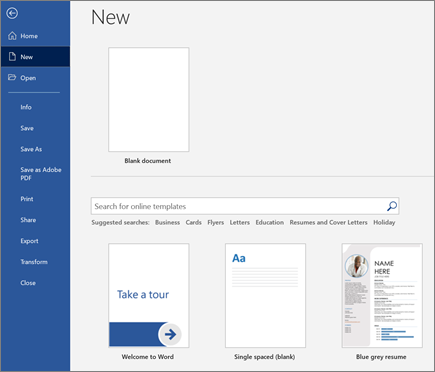
On the File tab, select New .
-
Select Blank document , or double-click a template image or type the kind of document into the Search for online templates box and press Enter .
Add and format text
-
Click on your new blank page and type some text.
-
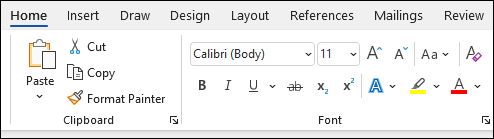
Select text to format and choose font options on the Home tab: Bold , Italic , Bullets , Numbering , and more.
Add Pictures, Shapes, SmartArt, Chart, and more
-
Select the Insert tab.
-
Select what you want to add:
-
Tables - choose
Table , hover over the size you want, and select it.
-
Pictures - select
Pictures , browse for an image on your computer, a online stock image, or with an image search on Bing.
Note: Older versions of Word may have Online Pictures on the ribbon next to Pictures .
-
Shapes - select
Shapes , and choose a shape from the drop-down.
-
Icons - choose
Icons , pick the one you want, and select Insert .
-
3D Models - select
3D Models , choose from a file or online source, pick the image you want, and select Insert .
-
SmartArt - choose
SmartArt , pick a SmartArt Graphic , and select OK .
-
Chart - select
Chart , choose the chart you want, and select OK .
-
Screenshot - select
Screenshot and select one from the drop-down.
-
Last modified: Friday, 26 June 2026, 12:44 PM

© SA Campus All Rights Reserved by SA Campus on the Go